

 18:42round 2 of 4
macOS · Windows
ML WorkHelp
A MilkLove buddy for your whole work day: a work clock or the Pomodoro, a focus screen, reminders, stickers from your own photos, and your weeks in numbers.
One is an app for Mac and Windows with Milk & Love that keeps you company all day. The other is an extension inside VS Code, with popular Thai mascots, for while you code. Each works on its own.
18:42round 2 of 4
A MilkLove buddy for your whole work day: a work clock or the Pomodoro, a focus screen, reminders, stickers from your own photos, and your weeks in numbers.
// today: learn one Thai word
const word = "ทำงาน"; // to work
function takeBreak() { … }
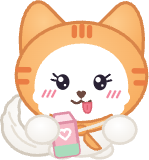

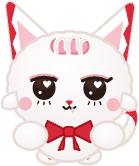
Not an app: an extension you add to VS Code. A popular Thai mascot walks round your editor, teaches you Thai words, keeps your Pomodoro and reminds you to rest.
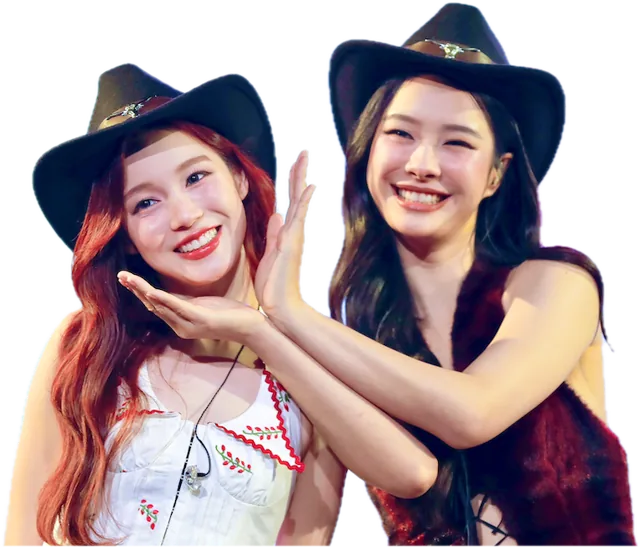
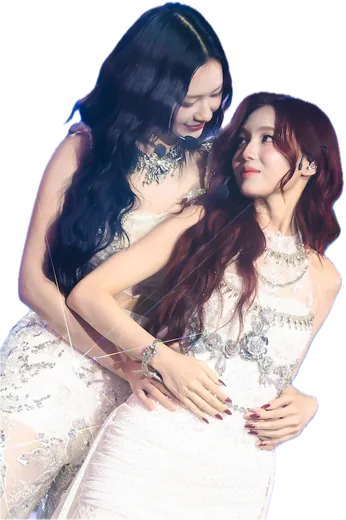
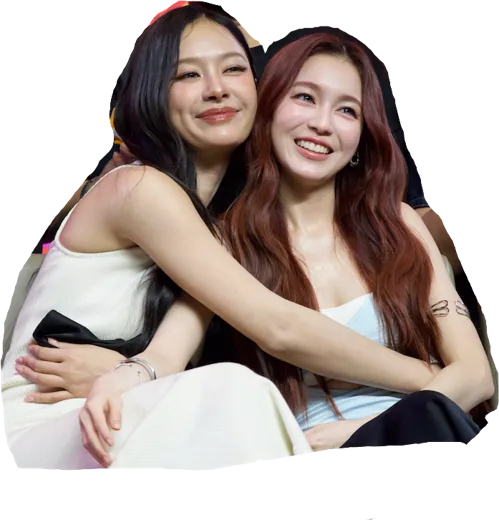
Stickers on this page are made from photos by Blumoon, Lyrac, NGMin, otter and KIU (used with permission) and by alitasdepollos; cartoon Muv drawings by หวานเจี๊ยบอุนยายม๋าไก่ (@wanwannjeab) and alitasdepollos.
Tap the one that sounds most like you.
| ML WorkHelp | Thai Mascot Buddy | |
|---|---|---|
| What it is | An app you download and open on its own | An extension that runs inside VS Code, while VS Code is open |
| How you get it | Download it from this page | VS Code Marketplace, in one click |
| Buddies | Milk & Love on your desktop, stickers from your own photos | Popular Thai mascots and animals round your editor |
| Keeping time | Work clock, Pomodoro, focus screen | Work time and Pomodoro in the status bar |
| Reminders | Reminders and events, with Apple sync on a Mac | Simple reminders and break pop-ups |
| Calendar & data | Summary, analysis, editable calendar | Not included |
| Looks | 10 styles, 6 colour themes, light and dark | Cartoon or pixel mascots |
ML WorkHelp and Thai Mascot Buddy are free, unofficial fan projects, made with love for MilkLove and Thai GL fans.
No price, no ads, no account.
Not made by or connected with GMMTV, Channel 3, LingLing Kwong, Milk or Love.
Every photo is credited to its photographer, and the mascots to their owners. To fix a credit or have something removed, write to us.
A MilkLove buddy for your work day.
A work clock or Pomodoro, reminders, stickers from your own photos and your weeks in numbers, with Milk and Love on screen.

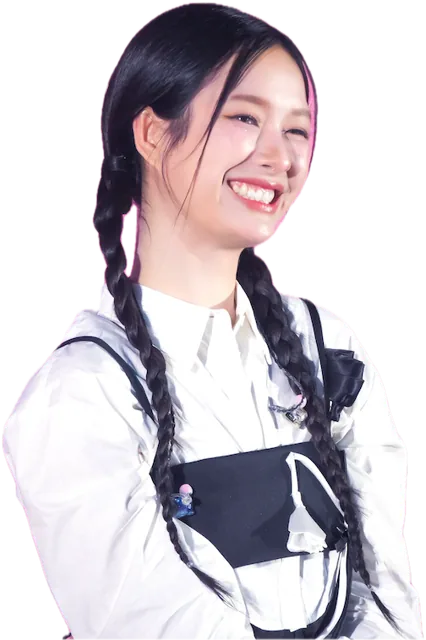
Polaroids: KIU (@kiu_628ML) · stickers in the app: GMMTV, Milk · cartoon Muv: wanwannjeab, alitasdepollos · every photographer is in Photos & credits
Reading, studying on paper, drawing? The clock fills the screen, and sitting still isn't counted as away. Try it here: change what's behind the clock and how it looks, just like in the app.
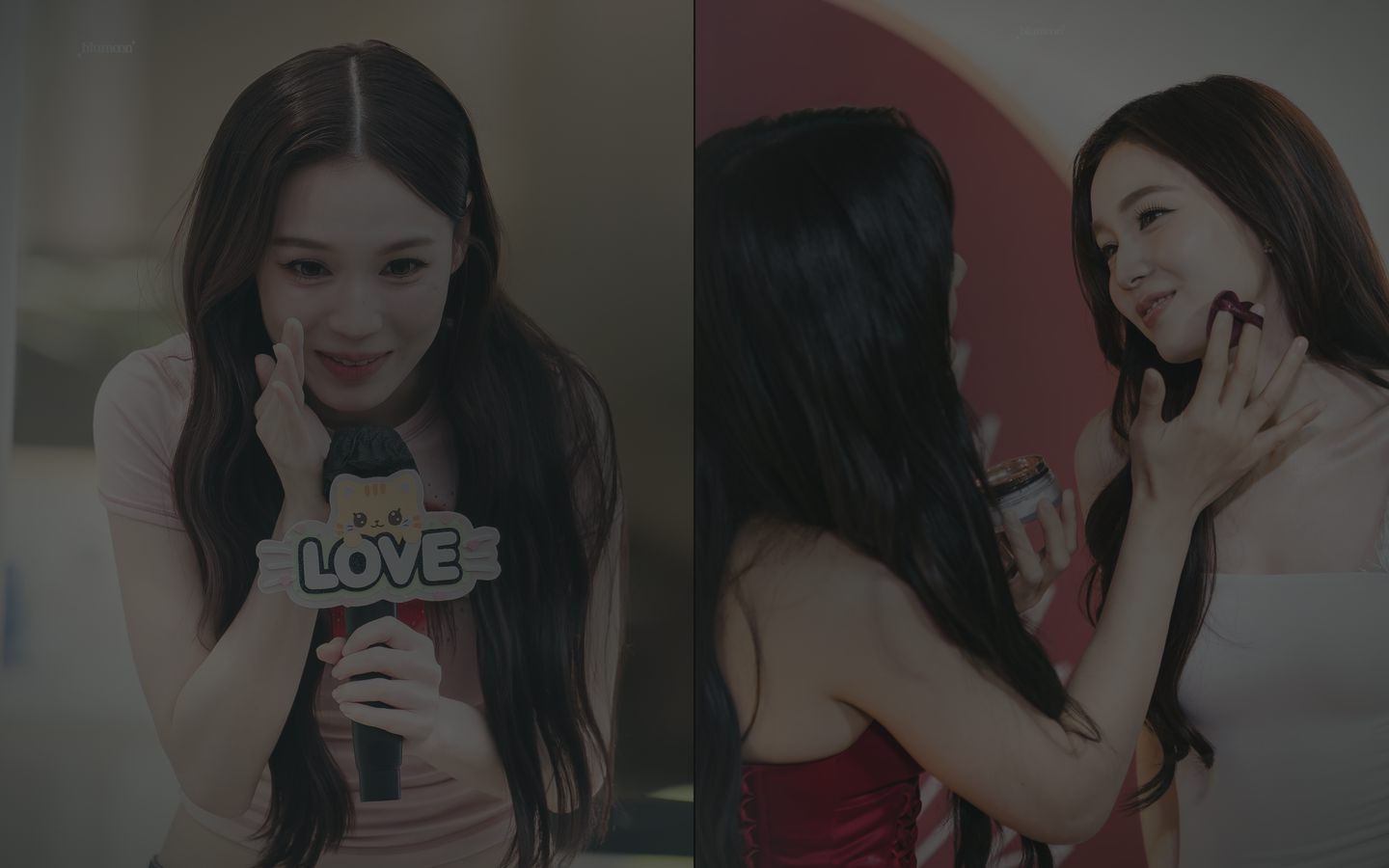
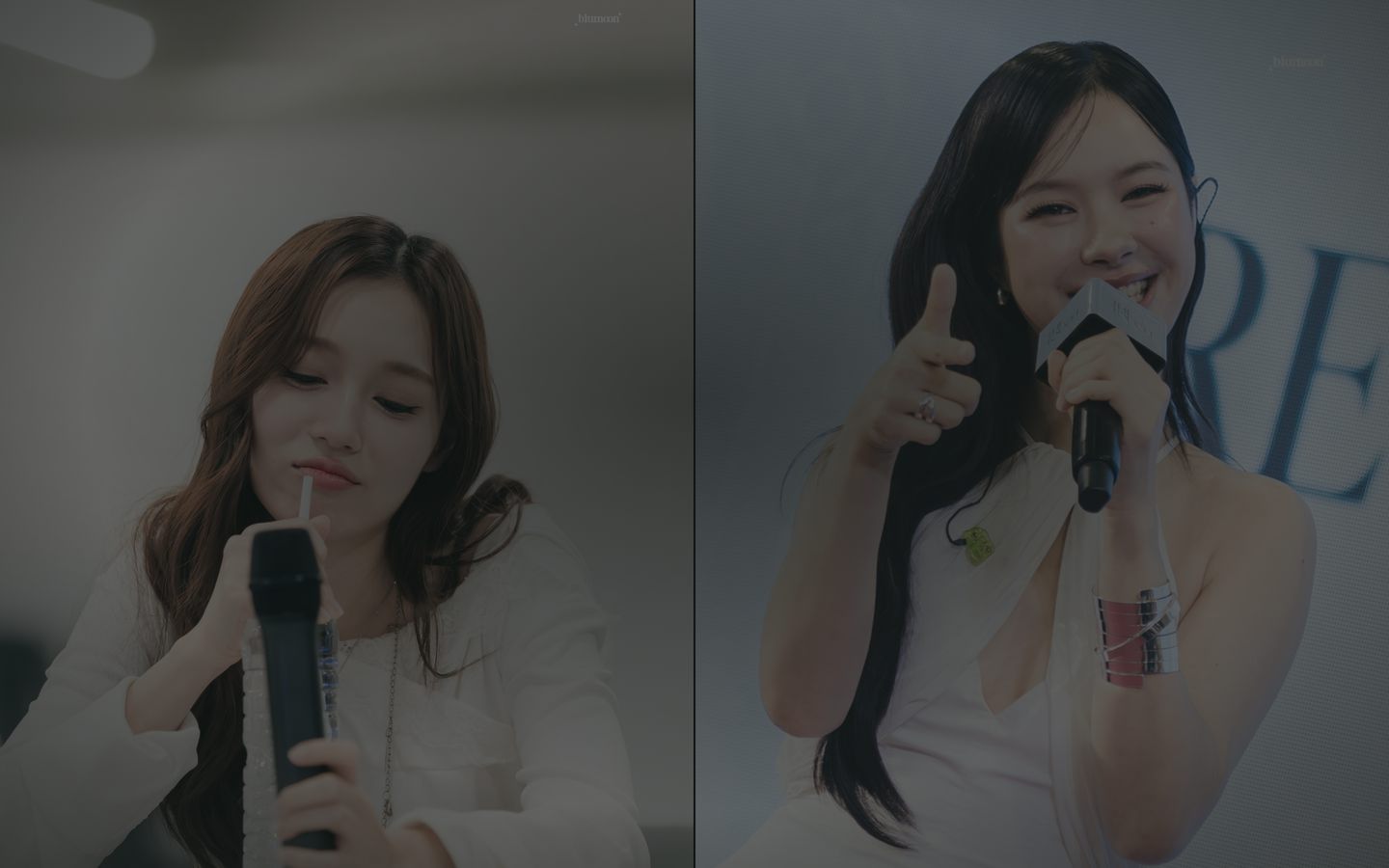
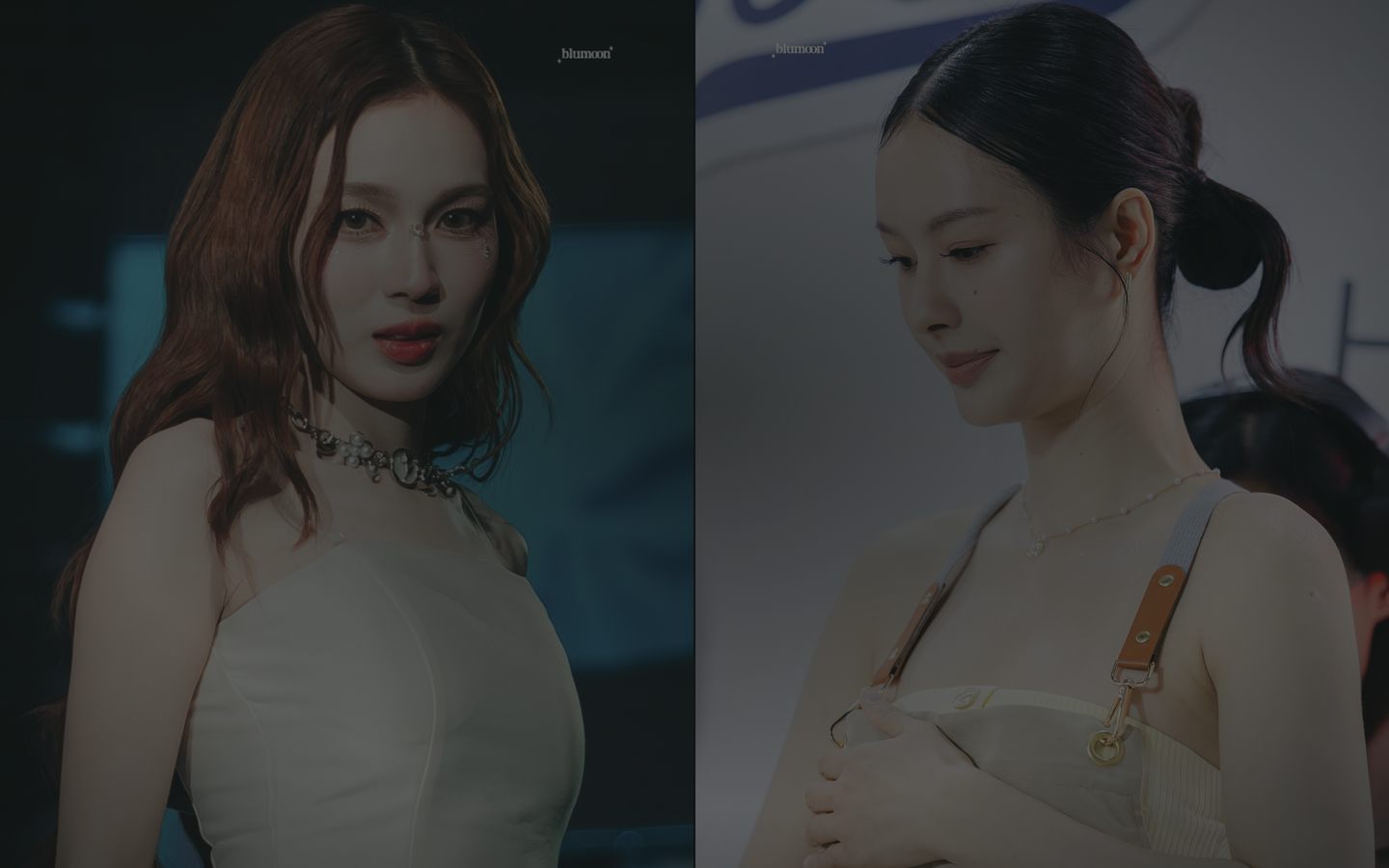

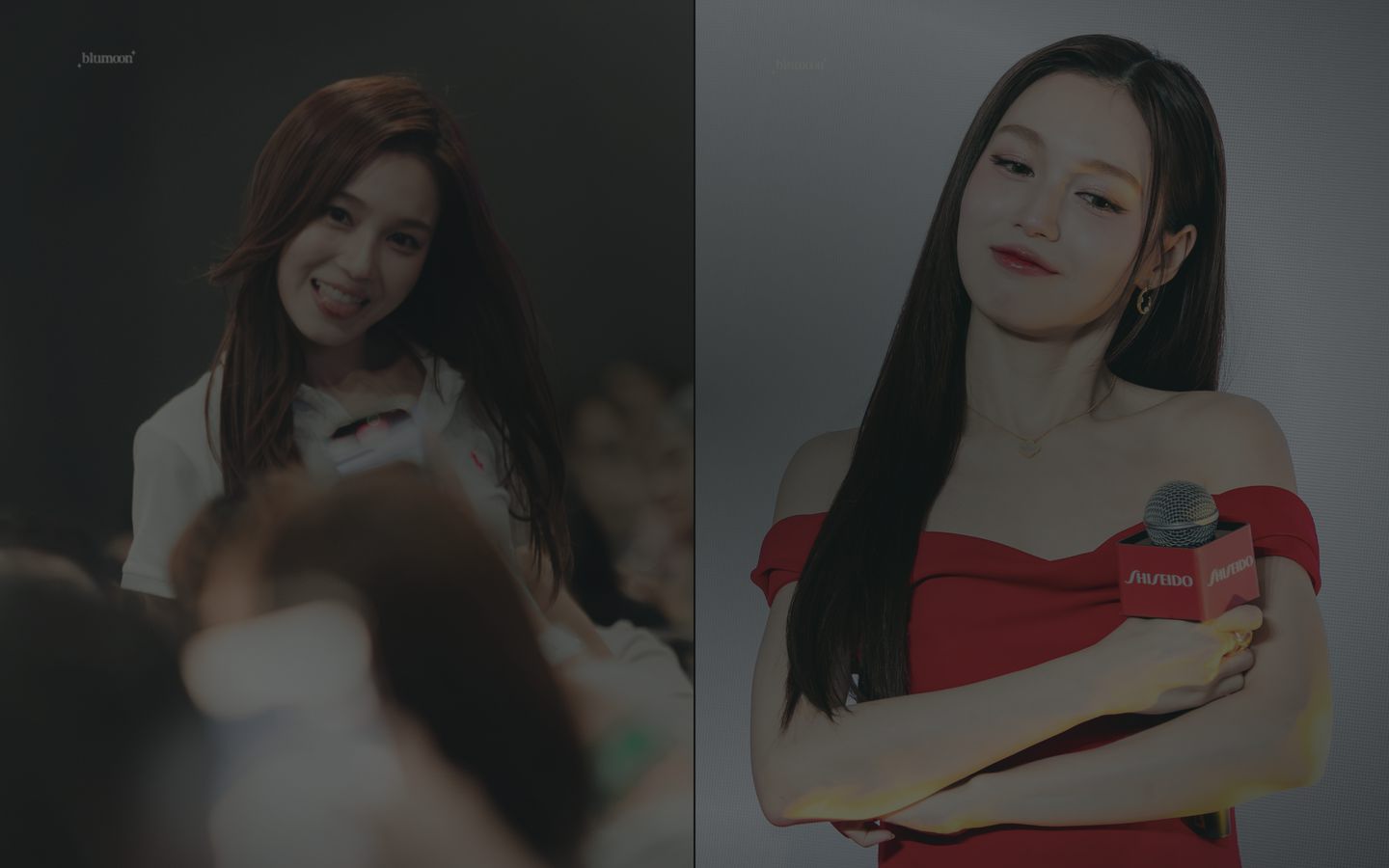
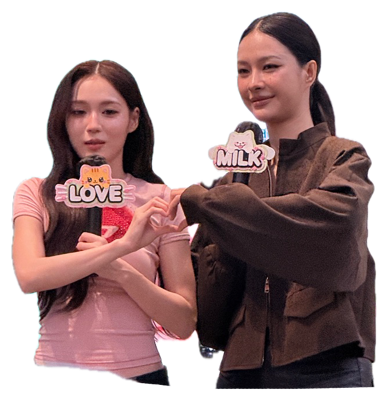
Photos in this preview: Blumoon (@blumoonfoto), used with permission. The walking stickers are made from photos by alitasdepollos (@alitasdepollos0).
This is a real, clickable preview. Pick a page, change the style, switch light or dark, just like Settings › Look in the app.

Stickers in this preview are made from photos by Blumoon, otter, NGMin and Lyrac, used with permission, and by alitasdepollos; cartoon Muv drawings by หวานเจี๊ยบอุนยายม๋าไก่ (@wanwannjeab) and alitasdepollos. Break-video thumbnails are from GMMTV OFFICIAL on YouTube.
Their shows, photos by fan photographers, and a box of pins.
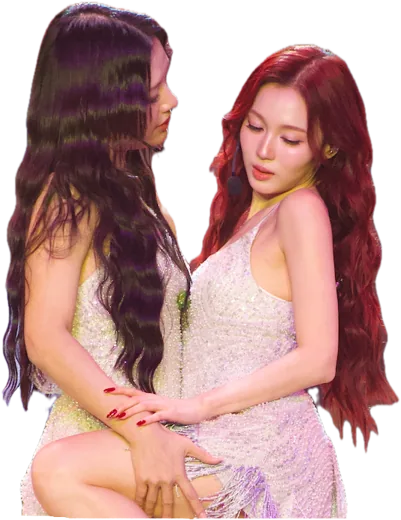
A library of stickers from fan photographers' photos, each one credited.
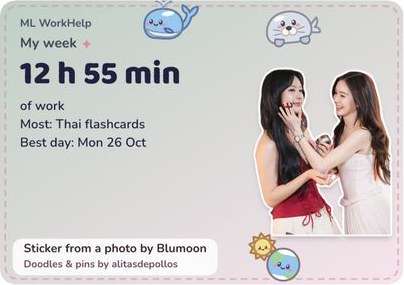
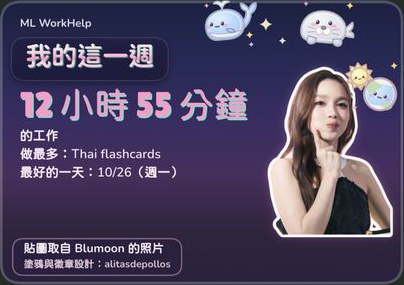
Make a picture of your week, add doodles and the pins you've earned, and save it.
Tap a pin, then turn it over.
Stickers here are from photos by Lyrac, Blumoon, otter and KIU (used with permission); card photos: Blumoon. Point at a sticker to see whose photo it is. Doodles and pins by alitasdepollos.
Your stickers walk on your desktop, show up on the focus screen, and celebrate with you when you're done for the day.
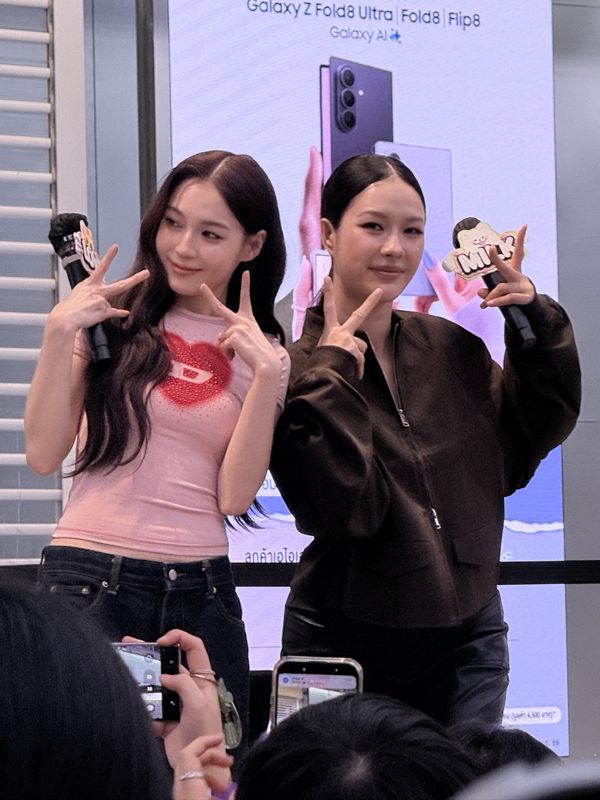
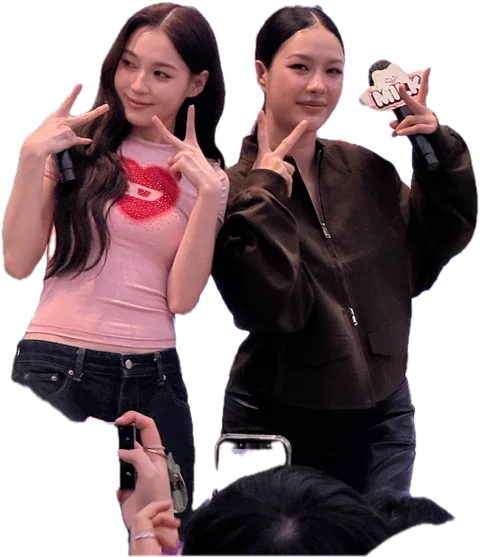

Example photos and stickers by alitasdepollos (@alitasdepollos0), touched up in the app.
Please respect the photographers. Only add photos you took yourself or have permission to use. Your stickers stay on your computer; the app never uploads or shares them. Stickers made in the app can only be used in the app.
Your work log, reminders, photos and settings stay on your computer. There's no account and no tracking. The one thing that leaves your computer is the email you give when you first open the app, only to tell you about new versions.
We've been given permission to use photos by Blumoon, Lyrac, NGMin, otter, KIU and PKYU, and the cartoon drawings by wanwannjeab. In the app, click any sticker to see its original photo and who took it.
For the other photos we tried to reach the photographers but haven't heard back. We've done our best to find and credit everyone; if a photo is yours and you'd like the credit changed or the photo removed, tell us any time and we'll fix it in the next update and let users know.
Doodles and pins by alitasdepollos.
ML WorkHelp is made with these open-source projects: thank you to everyone behind them. Each one links to its GitHub, with its licence beside it.
This page itself uses Lucide (ISC) and fonts from Google Fonts and jf open 粉圓 (SIL OFL 1.1).
Not sure which? Apple menu › About This Mac, and look at "Chip".
Other downloads
The app isn't signed, so Windows shows a warning the first time. The “Opening it the first time” steps show what to press.
Needs macOS 13 or later · Windows 10 or 11 (64-bit)
You may need to allow it again after each update. The app checks for a new version once a day by reading a small file on this page; nothing about you is sent. You can switch it off in Settings › About & updates.
We write when there's a new version of ML WorkHelp, or when there's something you need to know (for example, a rights holder asking for a photo or sticker to be removed). That's all.
Thank you! We'll write when there's news.
Thai words and a mascot buddy, right in VS Code.
 1import { buddy } from "./buddy";
 2
 3// one Thai word a day
 4const word = { thai: "ประชุม", say: "bprà-chum" };
 5
 6export function standUp() {
 7  buddy.celebrate();   // เก่งมาก · great job
 8  return `${word.thai} at 10:00`;
 9}
The panel follows VS Code's light or dark theme.
Or the animals. On a Mac the buddy walks round the editor, and the pop-ups show over any app.
MuvMuv, Milk and Love's little one, and seven popular Thai mascots, drawn after their official art in cartoon or pixel style; or the animals. They walk, breathe, blink, wave, cheer, worry and give a thumbs-up. Tap one to see its special move.
The original mascots belong to GMMTV, Channel 3 and LingLing Kwong; we only redrew them.
Thai Mascot Buddy is a free, unofficial fan project for MilkLove & Thai GL fans by alitasdepollos, not connected with GMMTV, Channel 3, LingLing Kwong or the artists. The drawings and stickers stay inside Thai Mascot Buddy: please don't take them out to use elsewhere. If you're a rights holder and would like something changed or removed, write to alitasdepollos01@gmail.com or @alitasdepollos0.
Thai Mascot Buddy is on the VS Code Marketplace: install it in one click, and VS Code keeps it up to date.
code --install-extension alitasdepollos.thaimascotdevhelpOr download the .vsix file (1.2.2)Then in Extensions: ⋯ › Install from VSIX…. Installed this way, it won't update by itself.
No, it's an extension. It lives inside VS Code and runs only while VS Code is open.
No. They're separate and don't share anything.
So far it's tested on a Mac only. On Windows, the helper that lets the buddy walk outside the panel hasn't been tested yet, so we can't promise it works.
Extensions › Thai Mascot Buddy › Uninstall.
No account, no sign-up, and nothing is sent online. To react to your coding it only notices things on your computer (a file saved, how many errors Problems shows, whether a test command passed, a commit); it doesn't read or keep your code.